1. Owner: turn it on once
In The Cleaners Place, open AI assistant in the left menu and click Turn on AI access. After that, you and your team can each connect their own account. You can disconnect any app, see everything it has done, or switch AI access off for the whole company from the same page.
Who this is for: owners, managers and cleaners. Each person connects with their own login, so the assistant only ever does what that person is allowed to do. Cleaners need an account first: ask your owner to invite you to The Cleaners Place, then follow the steps below. Never share a login.
2. Choose your device
Pick how you use ChatGPT or Claude to get step-by-step instructions with screenshots.
ChatGPT desktop app
You need the ChatGPT desktop app on your computer. The ChatGPT website does not support custom plugins, so this will not work in a browser. Each person follows these steps with their own ChatGPT account.
- 1Open the ChatGPT desktop app and sign in.
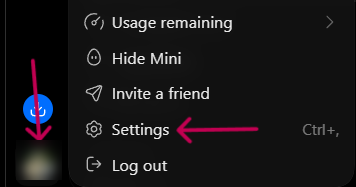
- 2Click your profile picture at the bottom left, then click Settings.
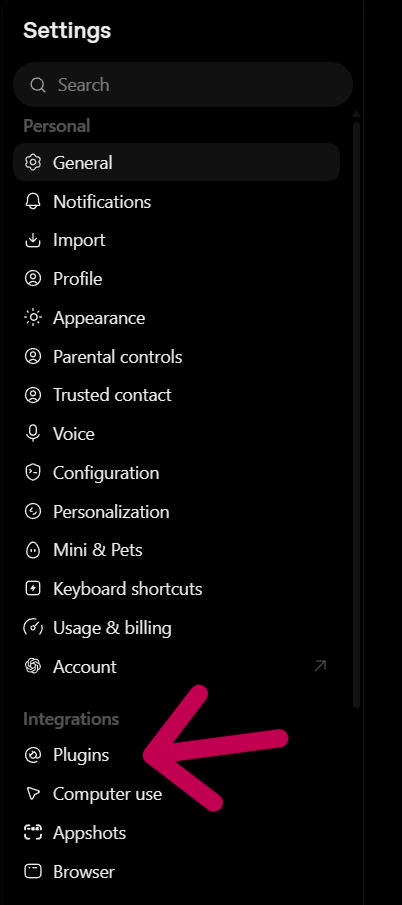
- 3Under Integrations, click Plugins.
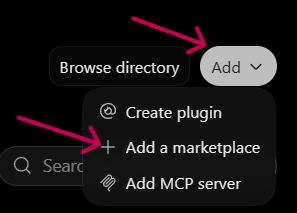
- 4Click Add, then Add a marketplace.
- 5In the Source box, paste the address above. Leave Git ref and Sparse paths empty, then click Add marketplace.The address to paste:
alexlovelady/the-cleaners-place-ai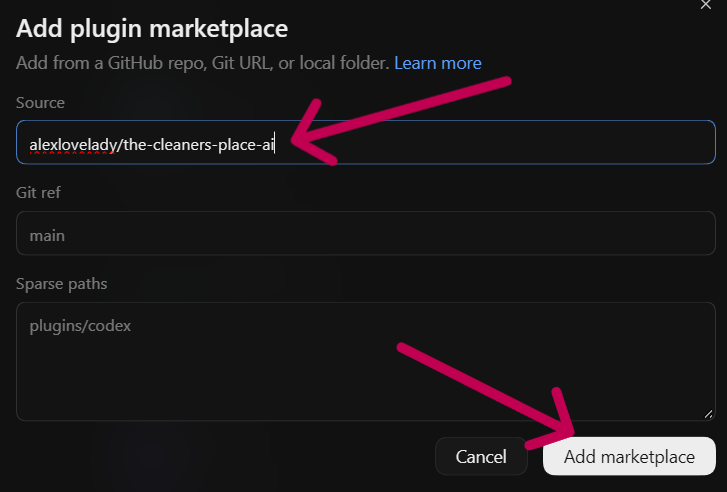
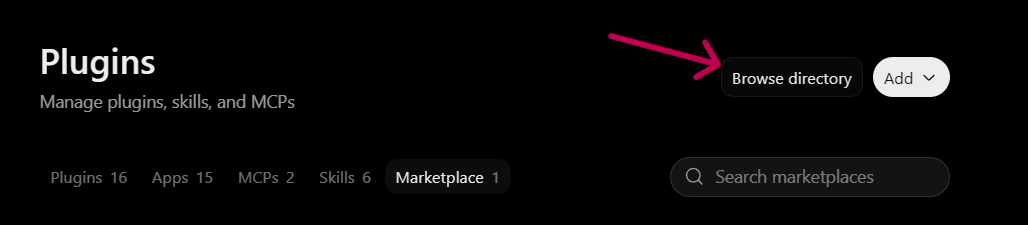
- 6Click Browse directory.
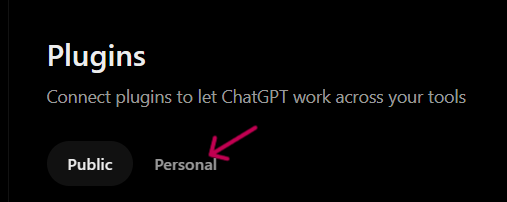
- 7Click Personal.
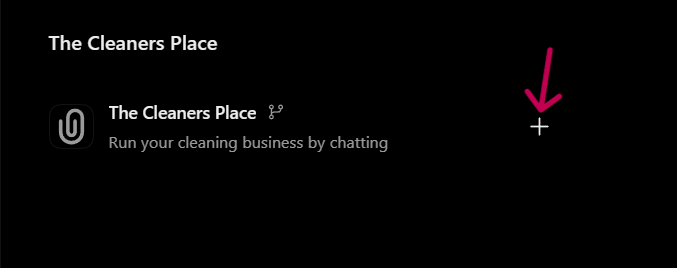
- 8Find The Cleaners Place and click the + next to it.
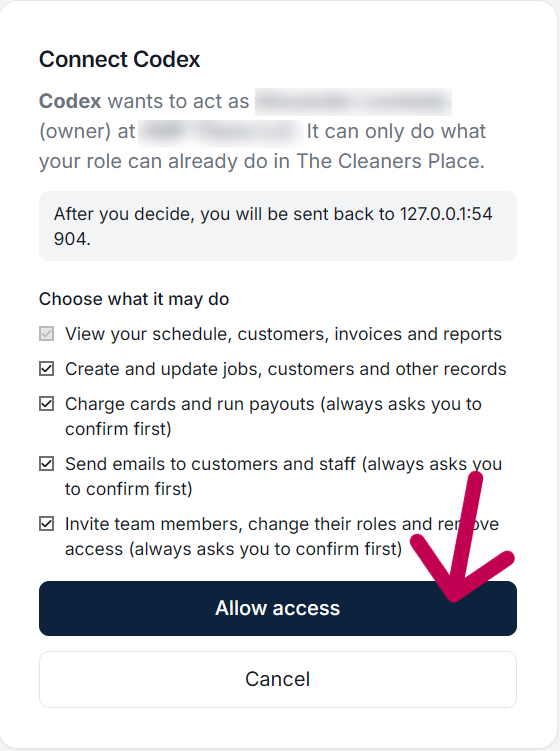
- 9A browser window opens. If you are not signed in to The Cleaners Place, sign in first. Check that it shows your name and company, then click Allow access. It says “Codex” because that is the name the ChatGPT desktop app uses.
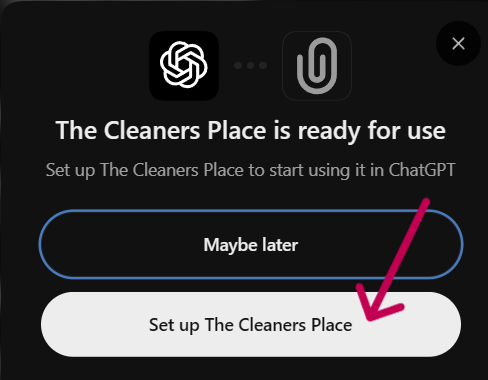
- 10Back in ChatGPT, click Set up The Cleaners Place. If you chose Maybe later, just start a new chat and ask ChatGPT to use The Cleaners Place.
- 11That is it: ChatGPT can now manage your business. Try the prompts below.
3. Check it works
Start a new chat and type: “Who am I in The Cleaners Place?” It should answer with your name, your role and your company. If it does, you are set: try one of the examples below. If it does not, see Something not working? at the bottom of this page.
Try these first
Start a new chat and try them in order. None of these spend money.
- “What’s on my schedule today?”
- “Find a customer named [a customer’s name] and show me their details.”
- “Show me profit for last month.”
- “What can you do with invoices?”
- “Add a customer called Test Customer with my own email address.” Then ask it to archive them again.
Anything that sends an email, spends money or deletes something asks you first. The riskiest actions also need you to click Approve in The Cleaners Place.
What you can ask
These are just examples. See the complete list of everything it can do, who can use each one, and which ones always ask you first.
Owners and managers
- “Good morning: what needs my attention today?”
- “Add a new customer and send them a quote.”
- “Which invoices are overdue? Charge the ones with a card on file.”
- “Plan next week and fix any double bookings.”
- “Show me profit by customer for last month.”
Cleaners
- “What jobs do I have today and where do I go first?”
- “Check me in.” / “I’m done with this job.”
- “How much will I be paid, and when?”
- “Request next Friday off.”
- “Report damage at today’s job.”
When it asks you first
Anything that sends an email, spends money or deletes something shows you exactly what it is about to do and waits for you to say yes in the chat. Say yes only if it is what you asked for. For the riskiest actions (charging a card, paying staff, changing pay or roles, erasing or exporting customer data) the assistant also gives you a link. Open it, make sure you are signed in to The Cleaners Place, check the details and click Approve. Then tell the assistant to continue. The link works for 10 minutes; if it runs out, just ask again.
How it stays safe
- It acts as you, with exactly your role’s permissions. A cleaner never sees prices, other cleaners’ data, or company finances.
- Charging a card, paying staff, emailing a customer or staff member, and deleting or cancelling things always show you a preview first and wait for your yes.
- Every action is logged on your AI assistant page, and you can disconnect any app instantly.
- Refunds and file or photo uploads are not available through the assistant. For a refund, contact support.
- The riskiest actions (charging a card, paying or changing pay for staff, inviting people or changing roles, erasing data, exporting a customer’s records, opening staff documents) also give you an approval link. They only go ahead after you open it yourself and click Approve, which no assistant can do for you.
Questions? Privacy policy and terms, or email [email protected].
Something not working?
It says AI access isn’t turned on
The owner has to switch it on once: AI assistant in the left menu, then Turn on AI access. After that everyone can connect.
I can’t find Plugins or Upload plugin in Claude
Update the Claude app (or use claude.ai in your browser) and look for Plugins in the menu. Not every plan or app version has it yet. If you still don’t see it, use Advanced: connect without the plugin below; it works the same way.
I installed it in ChatGPT but nothing happens
Installing only adds it. Go to Plugins, open the MCPs tab, find The Cleaners Place and click Authenticate, then sign in and click Allow access. Open a new chat afterwards.
It worked before and now asks me to connect again
Connections last up to 90 days, and end sooner if someone disconnects the app. Repeat the sign-in step (in Claude or ChatGPT, use Connect or Authenticate on The Cleaners Place). Your data and settings are not affected.
It says it can’t do something I expected
It can only do what your role allows, so a cleaner can’t see prices and a manager can’t make owners. If you connected a while ago, disconnect and connect again to pick up newer abilities (for example inviting staff).
The approval link says it expired or asks me to sign in
Sign in to The Cleaners Place with the same account you use in the assistant, then open the link again. Links work for 10 minutes; after that ask the assistant to start the action again.
It is slow or the chat says there are too many tools
Use the lighter address under Advanced below. It keeps the most-used tools only.
I want to stop it or remove access
Open AI assistant in The Cleaners Place and click Disconnect next to the app. It stops immediately. Owners can also turn AI access off for the whole company.
Advanced: connect without the plugin
If you would rather not install the plugin, add the server address directly. You will get the same connection, without the ready-made workflows.
https://thecleanersplace.com/mcp- Claude: Settings, Connectors, Add custom connector. Paste the address and keep the detected sign-in options (“Sign in now”, “Register automatically”), then Add, Connect and Allow access.
- ChatGPT: Settings, Plugins, Add, Add MCP server, Streamable HTTP. Paste the address, Save, then Authenticate and Allow access.
If your assistant struggles with the long list of tools, use the lighter address instead: https://thecleanersplace.com/mcp/lite (the most-used tools only).
ChatGPT only shows its model the start of a long tool list, so if you connect ChatGPT this way, use https://thecleanersplace.com/mcp/grouped instead.